This week’s assignment was to create any type of Scratch project of my choice, as long as it included the following:
- At least two sprites, at least one of which must resemble something other than a cat.
- At least three scripts total (i.e., not necessarily three per sprite).
- At least one condition, one loop, and one variable.
- At least one sound.
- My project should be more complex than most of those demonstrated in lecture, but it can be less complex than Ivy’s Hardest Game.
My Idea
I decided that I wanted to create a Breakout style game. My base goals included:
Ball
- Moves in 4 directions
- Bounces off the walls, paddle and blocks
Paddle
- Moves left/right, controlled by the keyboard
- Stops moving when hits the sides
Blocks
- Disappear when hit by the ball
Lives and Score
- When you run out of lives, game shows a Game Over screen
- When you kill all the enemies, game shows a Win screen
Sound Effects
- When the ball hits the paddle
- When the ball hits an enemy
- Title screen, Win screen, Game Over screen
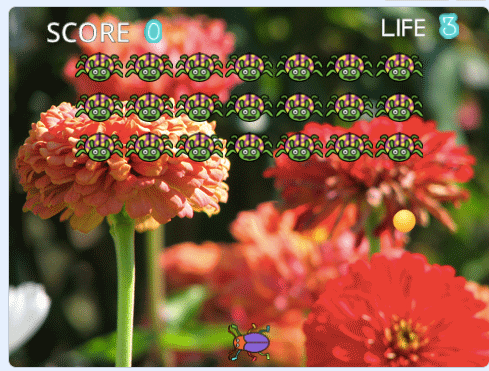
My final project can be played at https://scratch.mit.edu/projects/391773021, below is the process I went through to get there!
Tutorials
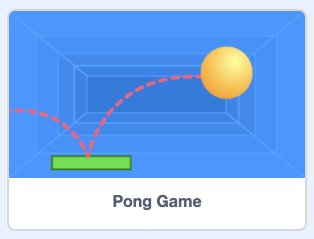
To begin with, I completed the starter tutorials available on Scratch. This gave me a good overview of the Scratch interface and the functionality I could utilise in my project. I did find that there was a tutorial for a Pong game, which would include similar functionality to my game, and for this reason I decided not to look at it. I wanted to challenge myself to see if I could figure out how to code my game without specific help, however I know that in the real world I would have no problem with looking up specific examples or other people’s help if I got stuck!
Paddle
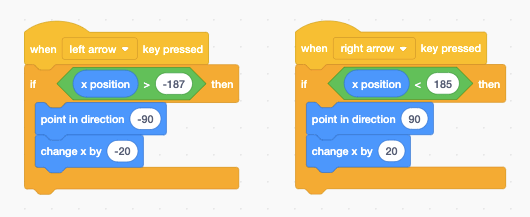
I started by coding the Paddle for my game, and made the Sprite a car. Making it move from left to right was straight forward, but I soon encountered my first problem. To make the car stop going off the edges, I tried using the if on edge, bounce block.

This succeeded in making the car not go off the edge, however the car would flip over 180 degrees, turning the sprite upside down. After experimentation, I settled with an if statement that said if the x axis of the car is not at the edge, point in the direction of the arrow key and move 10 paces.
Ball
I started by coding the motion of the ball. Initially, the ball moved right to the edge in the blink of an eye, so I added the wait command of a fraction of a second in a forever loop to give the effect of motion.
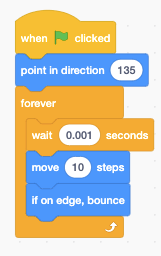
To make the ball bounce off the car, I used an if statement to say if the ball touched the car and it was pointing at 135 degrees, change to 45 degrees, otherwise change to -45 degrees.
*D
Blocks (ladybirds)
The ladybird blocks were the most challenging part of my project to code, and I had to sleep on certain problems to figure out the solutions!
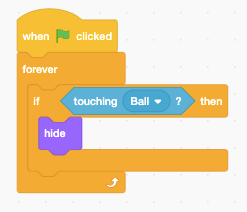
Firstly, I tried setting up the initial code to hide a ladybird when the ball touched it. This didn’t seem to work, and after many attempts to make this work, Google helped me realise I needed to wrap this code in a forever loop.
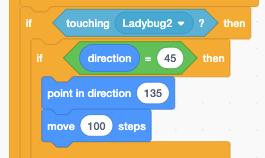
Next, I set out to program the ball to bounce off the ladybird. I started by duplicating the code that made the ball bounce off the car, but modified it to include the four possible angles it might bounce.

However, this didn’t work. I realised that this was because of the way I had structured the flow of my code. The direction of the ball was being changed in the first if statement, and then being changed straight back again by the next lines of code. The problem was that there were four possible angles, and I couldn’t figure out the correct combination of if statements to make this work. Some of my failed attempts are below:


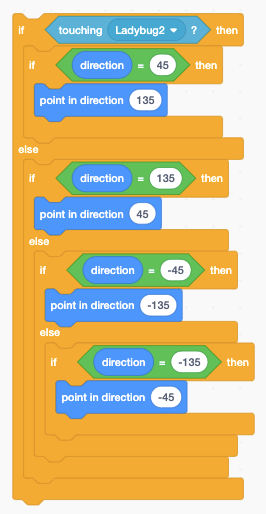
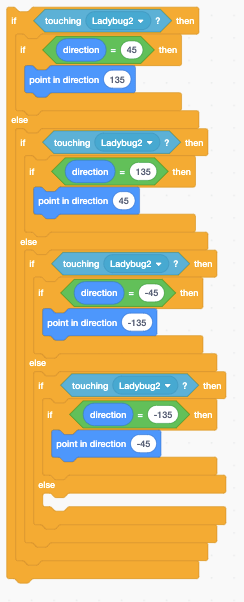
I was finally able to solve this problem once I found the Turn 90 degrees block in Scratch. Rather than hard coding the four possible angles I wanted the ball to bounce, with the Turn 90 degrees block I could write code that only had two possible outcomes.
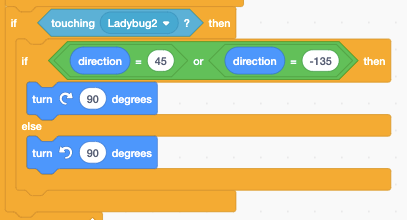
Now that I had coded one ladybird, I needed to think how I was going to scale this to multiple ladybirds. Theoretically, I could have simply duplicated the ladybird sprite multiple times and call it a day. However, what if I wanted to add more code to my ladybirds, or make any small changes? In that case, I would need to update all of my ladybirds, which would be time consuming and risk human error typing the same code multiple times. Further, it was said in our first lecture that it is bad coding practice in general to copy and paste code multiple times, rather than writing the code once and referring to it as and when you need it.
In a traditional programming environment, I believe that I would define functions, or blocks of code, which would allow me to reuse them multiple times. There is a define function in Scratch, but in Scratch I would still have to make multiple sprites to paste the define code into. Instead, I discovered the Clone block. This allowed me to make multiple copies of the ladybird, all from within one single sprite, which contained a single copy of the code.

I wrote out code that would make a single row of clones at specific coordinates. However, I knew that I wanted to have three rows of clones with 7 columns in each, and that hard coding the coordinates for 21 clones wasn’t good coding practice.
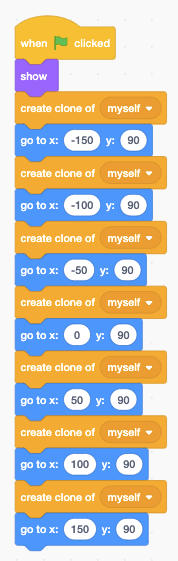
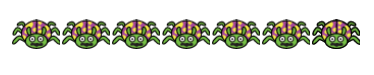
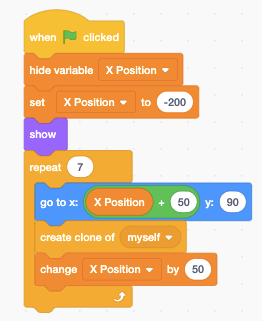
I was therefore able to work out code that would set the X and Y values of the first clone, then run a loop that would map out three rows and seven columns of ladybirds!

Resetting the ball
This next task seemed simple: when the ball hit the bottom, I wanted it to reset back to it’s starting position. I tried multiple versions of code that used variables to achieve this, but I just couldn’t get it to work.
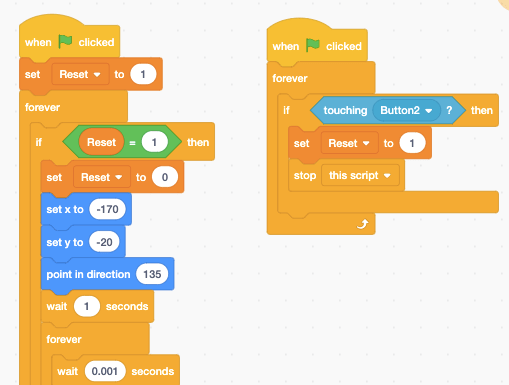
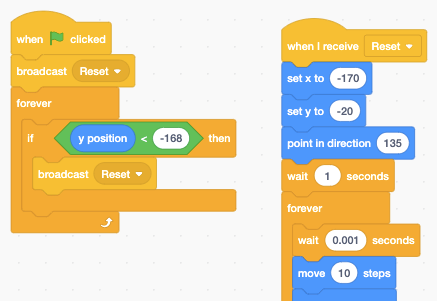
I couldn’t make this work at all, and so I decided to sleep on it. The next morning, I thought back to the lecture and remembered David had mentioned the use of ‘Events’ in programming, where one piece of code can ‘call out’ at a certain point, and another piece of code that is listening out starts their code at this point. With this in mind, I reworked my code to make use of the Event blocks in Scratch, and it worked!
Lives and Score
Now that I had the core functionality of my game, I wanted to introduce some challenge with a ‘life’ system.
I started by making a sprite that had four costumes representing the numbers 0-3. I then coded them to cycle through these costumes when the ball hits the bottom.
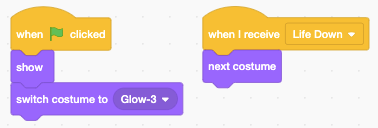
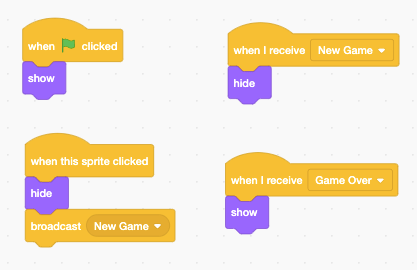
I then decided to make a Game Over screen that would appear when the player runs out of lives. I made a sprite for the Game Over message, as well as a New Game button that would trigger the reset of the game. I used the Events block a lot, and I’m glad I learned about this when figuring out how to reset the ball earlier!
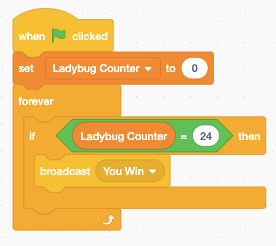
To make the player ‘win’ when they hit all of the ladybirds, I made a variable started at 0 and counted up every time a ladybird was hit. When the counter reached 21, it triggered a You Win screen.
Finishing Touches
To finish off my game, I firstly added a Title screen that would appear when you first started the game.
I then added sound effects that were triggered when the ball hit various other objects. I also added music that played when you began the game, when you won and when you lost.
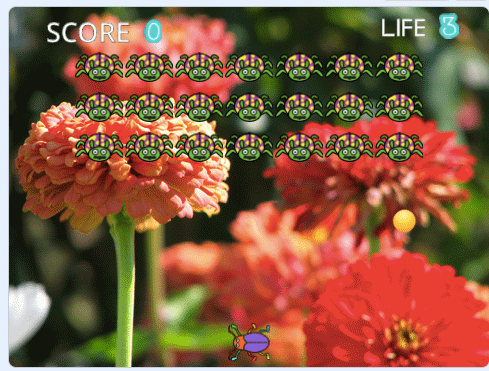
Finally, I added a flower backdrop – and my game was complete!

Conclusions
The assignment asked for the following:
- At least two sprites, at least one of which must resemble something other than a cat.
- At least three scripts total (i.e., not necessarily three per sprite).
- At least one condition, one loop, and one variable.
- At least one sound.
- My project should be more complex than most of those demonstrated in lecture, but it can be less complex than Ivy’s Hardest Game.
My game ended up having:
- 9 Sprites, none of which were a cat
- 33 scripts
- 10 conditions, 9 loops and 4 variables
- 8 sounds
- I believe that it is more complex than the examples given in the lecture
I submitted my project to the CS50x assignment bot check50, and passed the assignment 😊

I learned a lot while completing this assignment. There were a number of times that I got stuck, and I could have googled the direct answer (which I would have done in the real world), however I was really happy that I was able to figure out the solutions to my problem in code by myself in the end. I’m super proud of this fun little game that I was able to figure out how to make by myself!
https://scratch.mit.edu/projects/391773021
 Harmless Goose